Most guides on how to migrate WordPress site to new host stop at “install a plugin and click migrate.” That works until email stops arriving, a payment form breaks, or search traffic dips. This is the host-neutral runbook agencies use for client sites, covering backups, DNS timing, email records, SSL, SEO checks, and a rollback plan.
Before You Migrate WordPress Site to New Host
Why plan before you migrate WordPress site to new host
A migration has two risks: losing something during the copy, and breaking something during the switch. Planning removes most of both. For client sites, write the plan down and share the cutover window with the agency team, so nobody publishes content on the old server after the final sync.
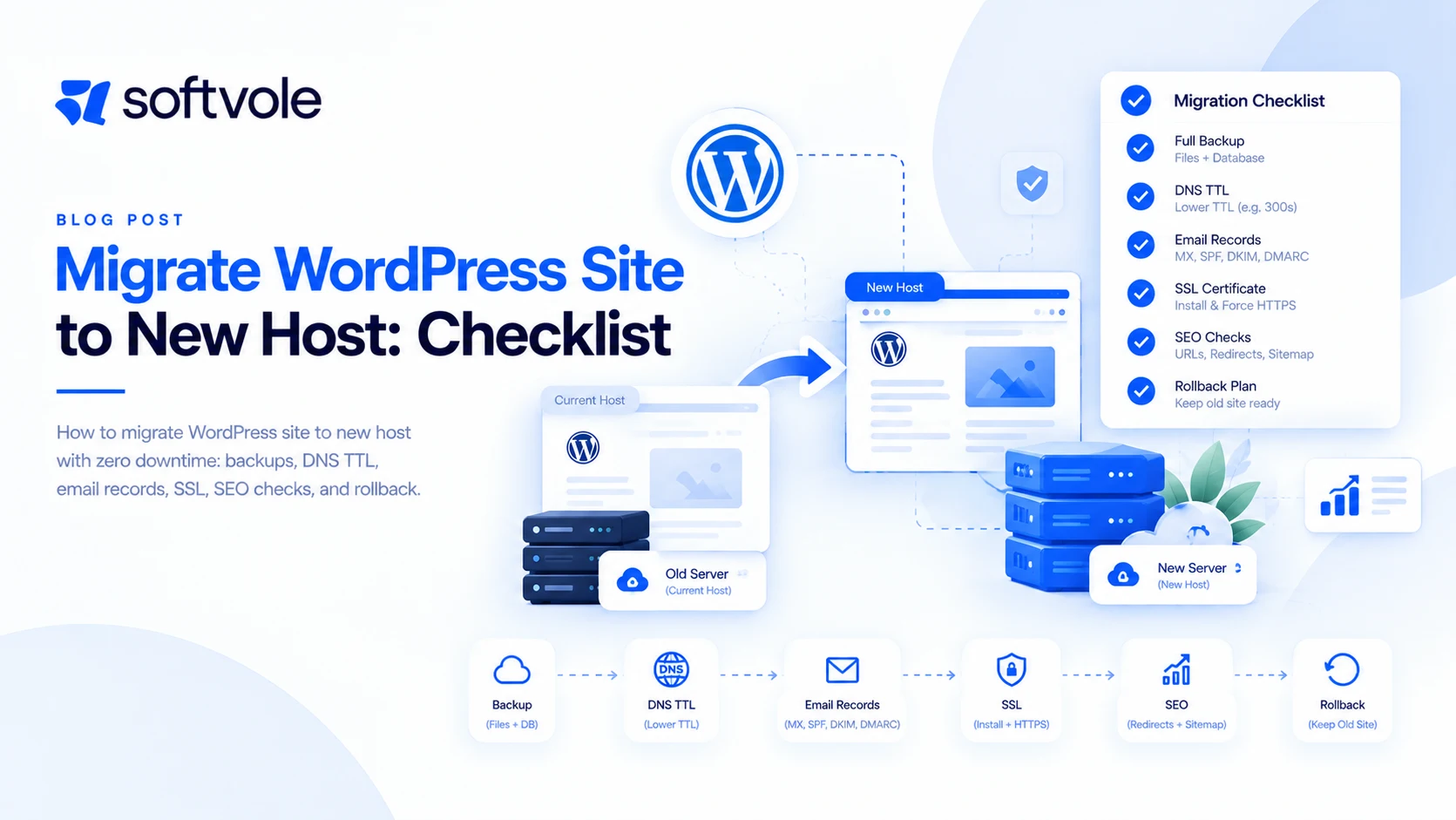
Short answer: Back up the site, set up the new host with the right PHP version, copy files and the database, update configuration, test on the new server before DNS changes, lower DNS TTL, switch DNS during a quiet window, issue SSL, then run functional and SEO checks while keeping the old host available for rollback.
| Method | Best for | Watch out for |
|---|---|---|
| Host’s migration tool or plugin | Small and medium sites | Size limits, skipped custom tables |
| Third-party migration plugin | Moves between different hosts | Timeouts on large media libraries |
| Manual (SFTP or SSH plus database export) | Large, custom, or WooCommerce sites | Needs serialized-safe search and replace |
| Git deployment plus database sync | Agency-managed builds | Uploads folder often lives outside Git |
Step 1: Prepare Both Hosts
- Take a full backup (files and database) and store it offsite. The WordPress handbook on backups covers what to include.
- Record current PHP version, active plugins, cron jobs, and any server-level redirects.
- Match or exceed the recommended stack on the new host: PHP 8.3 or greater, MySQL 8.0 or MariaDB 10.11 or greater.
- Export all DNS records from the current DNS provider, including email records.
- Lower the TTL on the A and CNAME records to 300 seconds, 24 to 48 hours before cutover.
- Agree a content freeze window with the client or agency team.
Step 2: Copy Files and Database
Files
Copy wp-content in full (themes, plugins, uploads, and any custom folders). Core files can be installed fresh on the new host, which also removes any modified core files left from an old compromise.
Database
Export with a tool that handles large tables, then import on the new server. If the domain or path changes, run a serialized-safe search and replace (for example with WP-CLI’s search-replace). Simple text replacement corrupts serialized plugin settings.
Configuration
Update wp-config.php with new database credentials, regenerate security salts, and confirm file permissions follow the hardening guide.
Step 3: Test Before Changing DNS
Point your own computer to the new server using a hosts file entry, or use the host’s temporary URL. Then run a real test plan, not a quick glance.
| Area | What to check |
|---|---|
| Templates | Homepage, top 10 landing pages, blog, archive, search, 404 |
| Forms | Submit every form, confirm emails and CRM entries arrive |
| Commerce | Test checkout in sandbox, confirm order emails and webhooks |
| Logins | Admin, member, and customer accounts |
| Scheduled tasks | Cron events, backups, feed imports |
| Performance | Lab speed test on two key templates, compare with old host |
Our WordPress QA checklist covers this stage in more depth.
Step 4: Cut Over DNS and Issue SSL
- Run a final database sync if content changed since the copy.
- Update A or CNAME records to the new host. Leave MX, SPF, DKIM, and DMARC records unchanged unless email is moving too.
- Issue SSL on the new host as soon as DNS resolves, then force HTTPS.
- Clear every cache layer: plugin, server, and CDN.
Email is the most common casualty. If the client’s DNS moves to a new provider, copy every email record exactly. A missing MX or SPF record can silently send mail to spam or stop it entirely.
Step 5: Post-Migration Checks
- Check for mixed content warnings in the browser console.
- Confirm Settings, Reading does not discourage search engines.
- Resave permalinks and test several old URLs.
- Submit the sitemap in Google Search Console and watch coverage for two weeks.
- Re-run form, checkout, and login tests on the live domain.
- Monitor uptime and error logs for 72 hours.
- Keep the old host active for at least 7 days, then cancel after a final backup.
If the domain or URL structure is changing at the same time, follow Google’s guidance on site moves with URL changes and map 301 redirects for every indexed URL. Platform changes, such as Drupal to WordPress, need a full redirect map.
When to Hand Migrations to a Partner
A simple brochure site is a one-hour job. A WooCommerce store with subscriptions, a multisite network, or a site with custom tables is not. Agencies usually bring in a partner when downtime would cost the client money, or when a migration is bundled with a redesign. Softvole handles hosting moves as part of website care and redesign projects, white label and under your brand.
Sample Migration Timeline
| When | Task |
|---|---|
| T minus 3 days | Backup, inventory, new host setup, DNS export |
| T minus 2 days | Lower TTL, copy files and database, configure |
| T minus 1 day | Full test plan on new host, fix issues |
| Cutover day | Content freeze, final sync, DNS switch, SSL, cache clear |
| T plus 1 to 3 days | Functional retests, error logs, Search Console |
| T plus 7 days | Final backup of old host, cancel old plan |
Extra Steps for WooCommerce Stores
- Schedule cutover in the lowest-order hour of the week.
- Pause or put the store into catalog mode during the final sync so no orders land on the old server.
- Confirm payment gateway webhooks point to the correct domain.
- Test a real low-value order after cutover and refund it.
- Check scheduled subscription renewals and stock syncs.
Store migrations are part of our WooCommerce development work, and our WP security checklist is worth running on the new server before go-live.
How to Choose the Destination Host
A migration is the best moment to fix hosting problems, and the worst moment to discover new ones. Before moving anything, compare the destination against the needs of the specific site rather than against marketing pages.
| Type | Typical monthly cost | Good for | Trade-off |
|---|---|---|---|
| Shared hosting | $3 to $15 | Very small sites with little traffic | Noisy neighbors, limited resources, weaker isolation |
| Managed WordPress hosting | $25 to $150 per site | Most business sites | Plugin restrictions on some platforms |
| Cloud VPS with a control panel | $20 to $100 | Agencies managing many sites | Requires server knowledge and patching |
| Dedicated or enterprise | $200 and up | High-traffic stores and networks | Higher cost, more configuration |
Questions worth asking any host: Which PHP versions are available and how quickly are new ones added? Are daily backups stored off the server? Is object caching (Redis or Memcached) included? Can you get SSH and WP-CLI access? What are the limits on PHP workers, which decide how many uncached requests can run at once? How is support handled at night and on weekends?
Special Cases That Need Extra Planning
Large media libraries
Sites with tens of gigabytes of uploads often time out during plugin-based migrations. Copy uploads directly between servers with rsync or SFTP, or move media to object storage first so only the database and code need to move.
Multisite networks
A network shares one database across many sites. Moving it requires keeping table prefixes intact, updating network domain settings in the database, and testing every mapped domain. Never migrate a single site out of a network at the same time as moving hosts; do one change at a time. Our guide to WordPress multisite covers network structure.
Sites behind a CDN or proxy
If the site sits behind a CDN, the visible DNS change may be at the CDN rather than the registrar. Update the origin address in the CDN, test with the CDN in development mode, and purge its cache after cutover.
Custom server rules
Apache rules in .htaccess do not work on Nginx servers. Redirects, security rules, and caching headers must be rewritten for the new web server. Export and review these rules before cutover, not after visitors start hitting 404s.
Email hosted on the old server
Some older hosting plans bundle email. If the client uses it, the migration becomes two projects: moving the website and moving mailboxes. Plan the email move separately, ideally to a dedicated email provider, and never cancel the old plan until mailboxes are confirmed working elsewhere.
How a Rollback Actually Works
A rollback plan is only real if you have tested the steps in your head before cutover. The simplest version: keep the old server running and unchanged, and if a critical issue appears that cannot be fixed within an agreed window (for example 60 minutes), point DNS back to the old server. Because TTL was lowered in advance, visitors return to the old site within minutes. Any orders or form submissions captured on the new server during that window must be exported and re-entered, so note the exact switch times. Write the decision rule in advance: who decides, what counts as critical, and how the client is told.
Troubleshooting Common Post-Migration Problems
| Symptom | Likely cause | Fix |
|---|---|---|
| “Error establishing a database connection” | Wrong credentials or database host in wp-config.php | Check DB name, user, password, and host value |
| Homepage works, inner pages 404 | Permalinks or rewrite rules missing | Resave permalinks; add Nginx rewrite rules if needed |
| Browser shows “not secure” | Mixed content or missing SSL | Issue SSL, update hard-coded http URLs safely |
| Images missing | Uploads not fully copied or wrong paths | Re-sync uploads, check file permissions |
| Forms send no email | New server cannot send mail or SPF fails | Use an SMTP or transactional email service |
| Site slower than before | Caching not configured, fewer PHP workers | Enable page and object caching; review plan limits |
| Logged out repeatedly | Cookie domain or URL settings mismatch | Check site and home URLs, clear cookies |
Communicating the Move to Clients
Clients rarely care about servers, but they care a lot about surprises. Send a short note before the move with the date, the expected impact (usually none for visitors), what they should avoid doing during the content freeze, and who to contact if they notice anything odd. Send a second note after cutover confirming the move is complete and listing what was tested. That second note also creates a record if questions come up weeks later.
What a Professional Migration Costs
A straightforward brochure site migration typically costs $150 to $500 when done by a professional. Larger sites with WooCommerce, custom server rules, multisite, or email moves often range from $500 to $2,500. Migrations bundled into a redesign or a care plan onboarding are usually priced within that project. The cost of a failed migration, measured in lost orders, broken email, or a ranking dip, almost always exceeds the cost of doing it carefully.
0 min